SpeakSoon networking automation platform logo
    HubSpot logo — SpeakSoon HubSpot integration setup guide

    Setup guide

    Set up the SpeakSoon HubSpot integration

    Everything you need to install the app, connect a HubSpot account, configure syncing, use it day to day, and disconnect or uninstall it later.

    What SpeakSoon does

    SpeakSoon is a networking companion for B2B sales teams. Your team captures the people they meet at events through WhatsApp or a badge scan, adds context in their own words, and SpeakSoon turns that into structured contact records.

    The HubSpot app connects your SpeakSoon workspace to a HubSpot account so those event contacts become HubSpot contacts, companies, tasks, and notes, without anyone retyping data. Existing records are matched instead of duplicated.

    1. Sync event contacts to HubSpot contacts and companies.
    2. Write the conversation context to a note on the contact record.
    3. Create a follow-up task for the owner of the contact.
    4. Optionally create a deal in your default pipeline when Pipeline mode is on.

    Before you start

    1. A SpeakSoon account with the Admin role in your workspace.
    2. A HubSpot account where you are a Super Admin, or a user with App Marketplace install permissions.
    3. A HubSpot subscription that includes contacts, companies, tasks, and notes. All Hub tiers, including Free, are supported.

    Install the app and connect HubSpot

    Installation happens from inside SpeakSoon. It takes about two minutes and no API keys are involved.
    1. Log in to SpeakSoon at app.speaksoon.app.
    2. In the left sidebar, go to Settings, then Integrations.
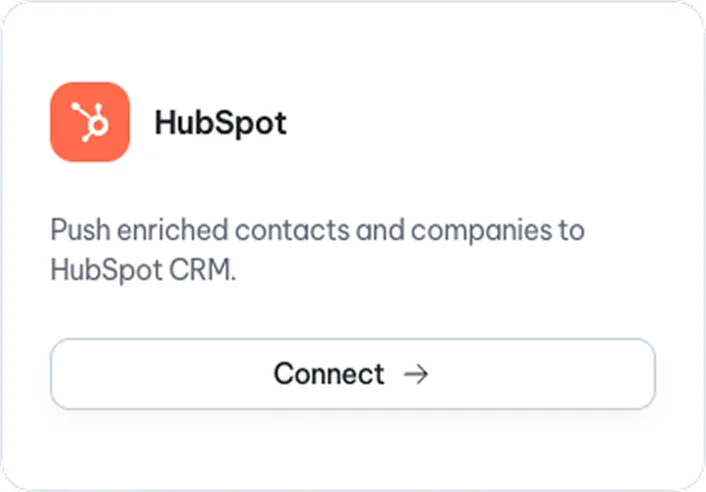
    3. Find the HubSpot card and click Connect. This opens the HubSpot integration details page, where you click Connect to HubSpot.
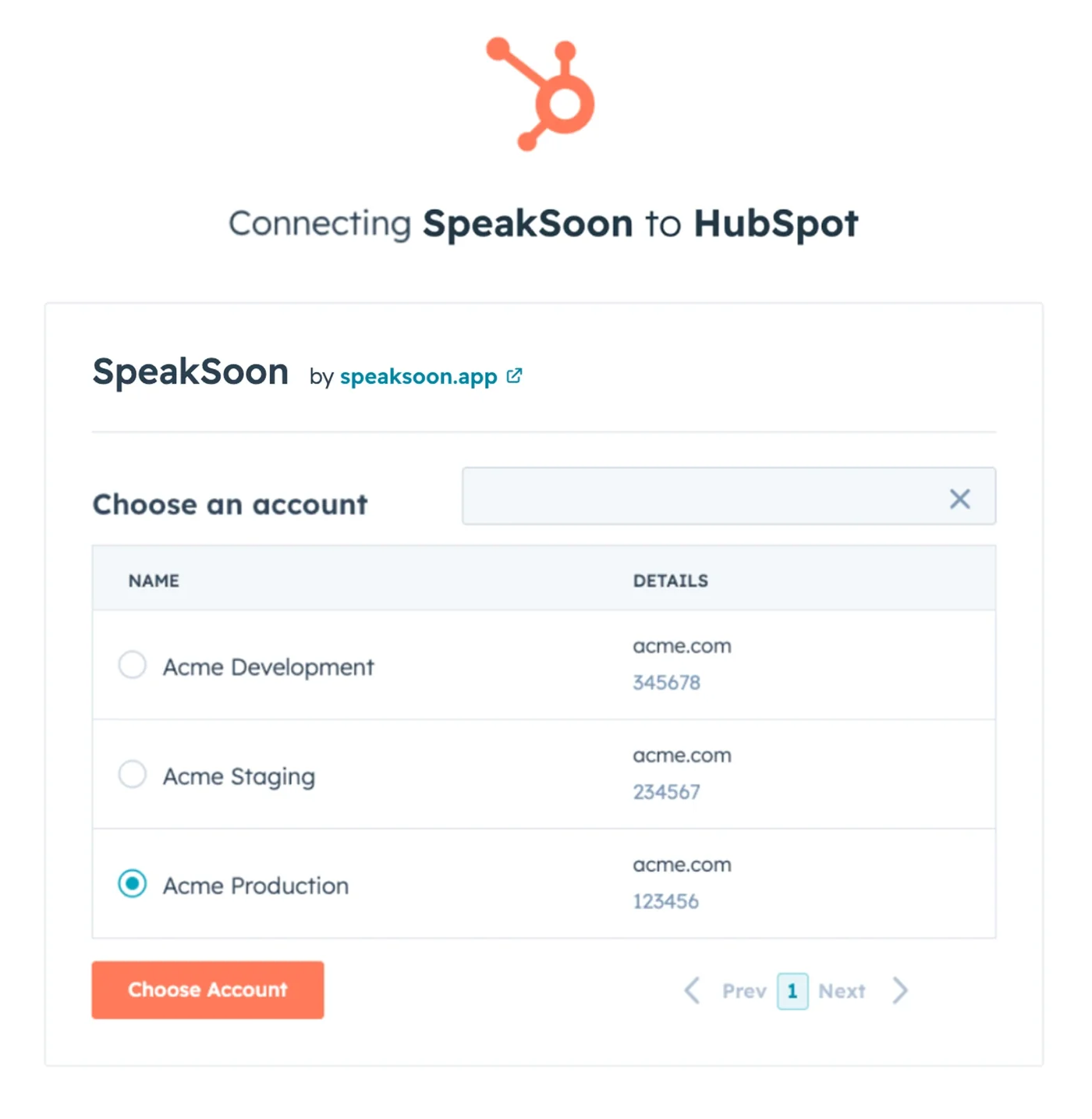
    4. You are redirected to HubSpot. Choose the HubSpot account you want to connect and click Choose Account.
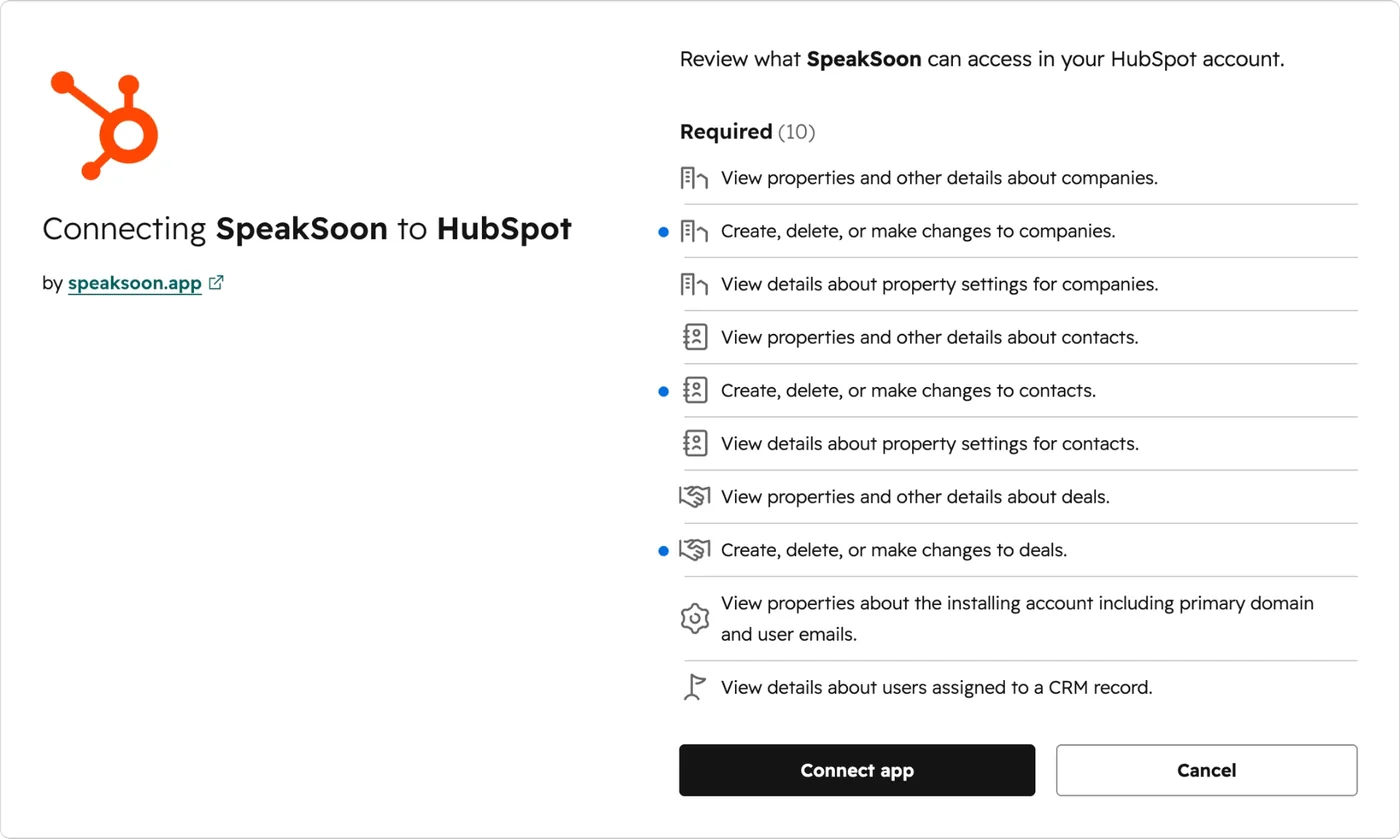
    5. Review the requested scopes on the approval screen. SpeakSoon requests read and write access to contacts and companies, read and write access to contact and company properties, and read and write access to tasks and notes. Pipeline mode additionally requests deals.
    6. Click Connect app.
    7. You are redirected back to the SpeakSoon Integrations page. The HubSpot card now shows Connected, together with the name of the connected HubSpot account, and the configuration options appear.
    SpeakSoon Integrations page showing the HubSpot card with a Connect button
    The HubSpot card in SpeakSoon, under Settings, then Integrations.
    HubSpot Choose an account screen when connecting SpeakSoon to HubSpot
    Select the HubSpot account you want to connect and click Choose Account.
    HubSpot access review screen listing the scopes SpeakSoon requests
    Review the requested access, then click Connect app.

    Configure the app

    The connection is already live after the redirect. All of the settings below are optional and live in SpeakSoon under Settings, then Integrations, then HubSpot.
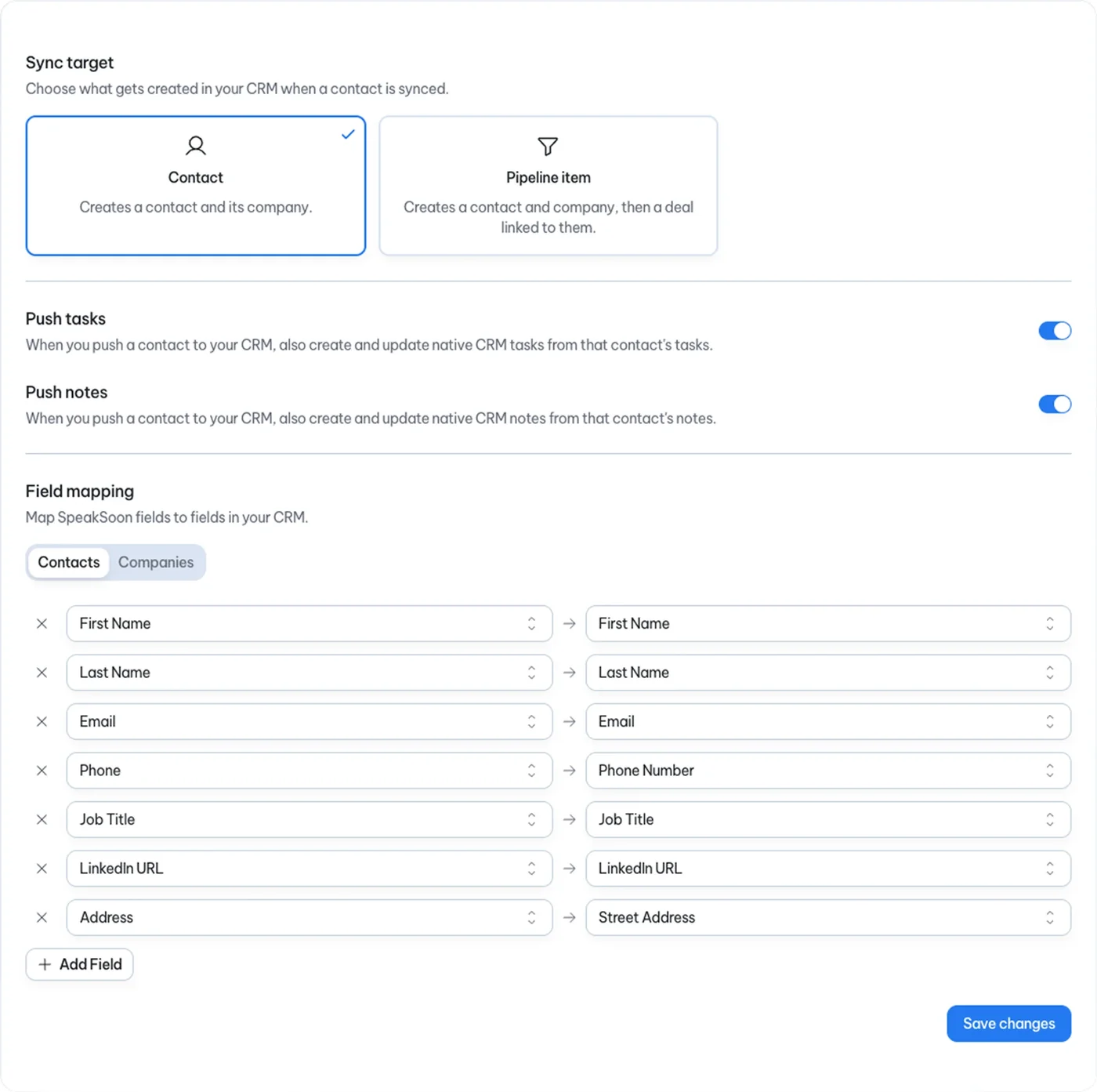
    1. Choose a sync mode. Contact mode creates or updates a contact and its company. Pipeline mode does the same and also creates a deal in your default pipeline, at the first stage.
    2. Check the field mapping. SpeakSoon provides a default mapping for all main fields such as name, email, phone, company, job title, and event name. You can optionally edit it.
    3. Toggle notes and tasks on or off to optionally push the conversation context and a follow-up task to the contact.
    4. Click Save.
    SpeakSoon HubSpot settings showing sync target, push tasks and notes toggles, and field mapping
    Sync target, the notes and tasks toggles, and the default field mapping.

    Use the app

    Syncing is manual for now, so your team decides what goes to HubSpot and when.

    1. Open Contacts in SpeakSoon, select one or more people, and click Sync to HubSpot.
    2. SpeakSoon first looks for a matching contact by email, then by name plus company, and updates that record instead of creating a duplicate.
    3. Check the result: each SpeakSoon contact shows its sync status and a direct link to the HubSpot record. Failed syncs show the reason and can be retried from the same screen.
    4. Follow up inside HubSpot exactly as you would with any other contact, using the task and the note SpeakSoon created.

    Disconnect a HubSpot account

    Please note: Disconnecting stops all syncing between SpeakSoon and HubSpot. Contacts, companies, tasks, notes, and deals that were already created stay in your HubSpot account and are not deleted or modified. Contacts captured in SpeakSoon after disconnecting are not sent to HubSpot.

    1. Log in to SpeakSoon.
    2. Go to Settings, then Integrations.
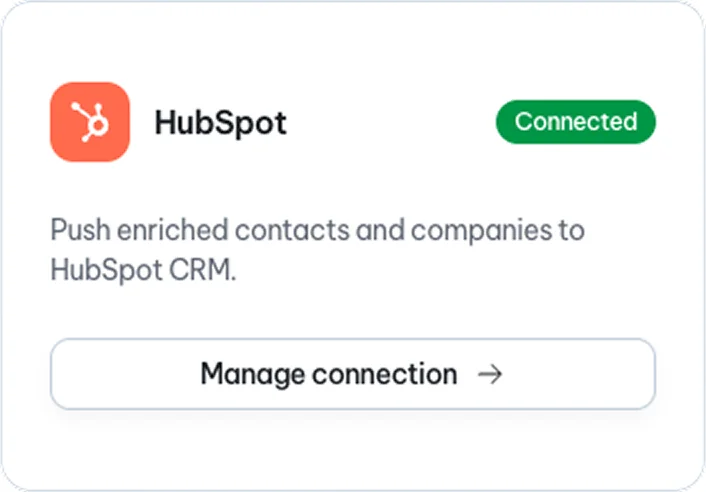
    3. Find the HubSpot card and click Manage connection to open the HubSpot integration details page.
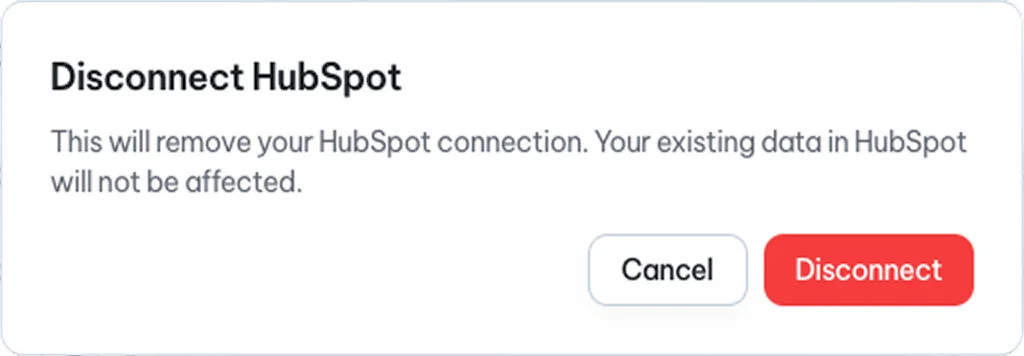
    4. Click Disconnect.
    5. Confirm with Yes, disconnect.
    6. The card returns to the Connect state and the configuration options are hidden.
    Connected HubSpot card in SpeakSoon with a Manage connection button
    Click Manage connection on the connected HubSpot card.
    SpeakSoon HubSpot connection details screen showing the Remove connection button
    On the connection details screen, click Remove connection.
    Disconnect HubSpot confirmation dialog in SpeakSoon
    Confirm in the dialog to disconnect HubSpot.

    Uninstall the app from HubSpot

    Please note: Uninstalling revokes SpeakSoon's access token. Records SpeakSoon already created remain in HubSpot untouched. Your SpeakSoon data is unaffected and stays available in SpeakSoon.

    1. In HubSpot, click the settings icon in the main navigation bar.
    2. In the left sidebar, go to Integrations, then Connected Apps.
    3. Find SpeakSoon in the list, click the Actions dropdown and choose Uninstall.
    4. Type uninstall to confirm, then click Uninstall.

    Data, privacy, and accessibility

    SpeakSoon only reads and writes the contact, company, task, note, and deal records tied to the people you sync. It does not read your wider HubSpot database and it does not touch your other integrations.

    Data is processed inside the EU, encrypted in transit and at rest, and handled under a GDPR data processing agreement. You can request deletion of your data at any time via info@speaksoon.app.

    Potential consequences to your data from disconnecting and uninstalling the app: none. Both your data in SpeakSoon and in HubSpot stay exactly the same. Only the link between them is removed and no data is lost.

    Support

    Something not syncing as expected? Mail hello@speaksoon.app and our team will help you, usually the same working day.